Visualizing Pipeline Profiles
Preliminaries
The Feldera SQL compiler transforms a query into a dataflow graph. A dataflow graph is a representation of a program composed of two kinds of objects: nodes and edges. Nodes (also called operators) represent computations, and edges show how data flows between nodes. Dataflow graphs can be represented visually as networks of boxes and arrows: the boxes are the computations, while the arrows show how data produced by a node is consumed by other nodes. For SQL programs you can think of the nodes as roughly representing the SQL primitive operations, while each edge represents a collection: the result produced by the node when it receives inputs.
Feldera queries run continuously, each receiving many input changes and producing many output changes. So multiple Feldera views are compiled into a single pipeline, which then runs for a long time, receiving inputs and producing outputs.
"Profiling" in programming is the technique of measuring and understanding the behavior of computer programs.
The Feldera engine contains lots of instrumentation code which collects measurements about the behavior of each operator. These measurements are aggregated into measurement statistics. For example, the code may measure how much time an operator spends to process each change. During the lifetime of a pipeline each operator may be invoked millions of times, so the information is summarized, for example as the "total time" spent executing this operator.
There are many interesting measurements that may be collected; other
examples are: how much data is received by the operator, how much data
is produced by the operator (note that an operator like WHERE
produces less data than it receives), how much data was written to
disk, how much memory was allocated by an operator, when searching for
a value what is the success rate (for JOIN operations), etc.
Feldera pipelines are designed to take advantage of multiple CPU cores (and will soon use multiple computers as well, each with multiple cores). When you start a pipeline you specify a number of cores, and each operator of the dataflow graph is instantiated once for every core. The profiling code collects information for each core.
Visualizing profile information
The profile visualization tool lets you display the dataflow graph of the program. There are two ways to use the tool:
-
the tool is integrated with the Feldera WEB-based user-interface
-
the tool can be used by developers for offline analysis of support bundles which contain profiling information.
Starting the profile visualization from the web UI
The web app monitoring panel has a "profiler" tab which enables the collection of visualization of profile data:
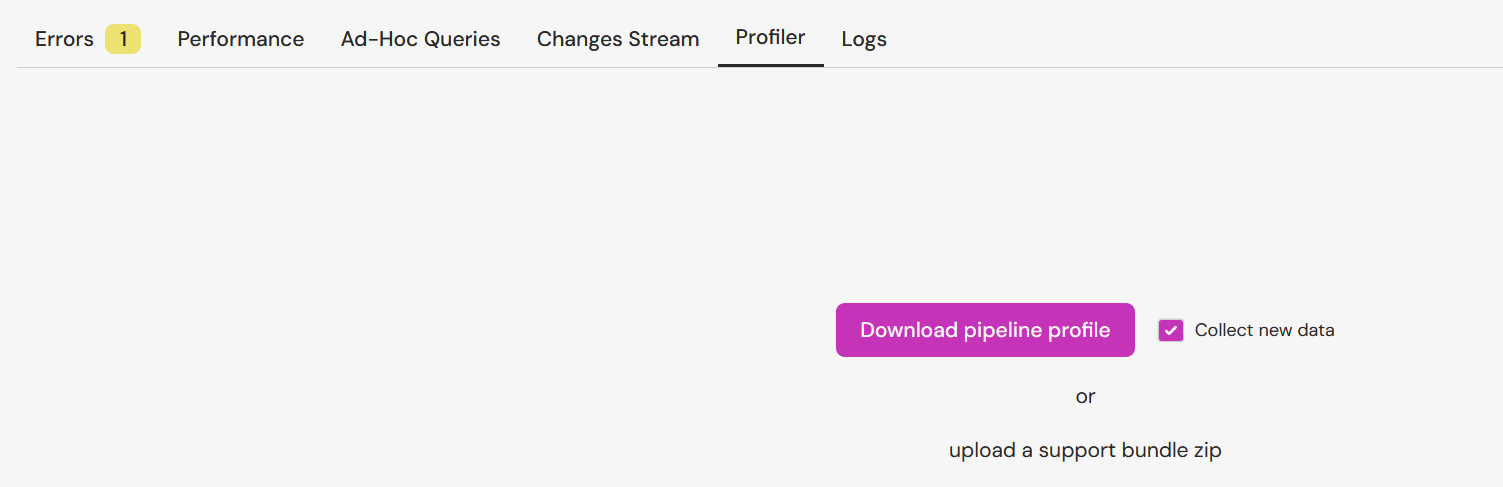
The UI allows collecting a new bundle or uploading a bundle received as a zip file from a third party.
Profiler visualization UI
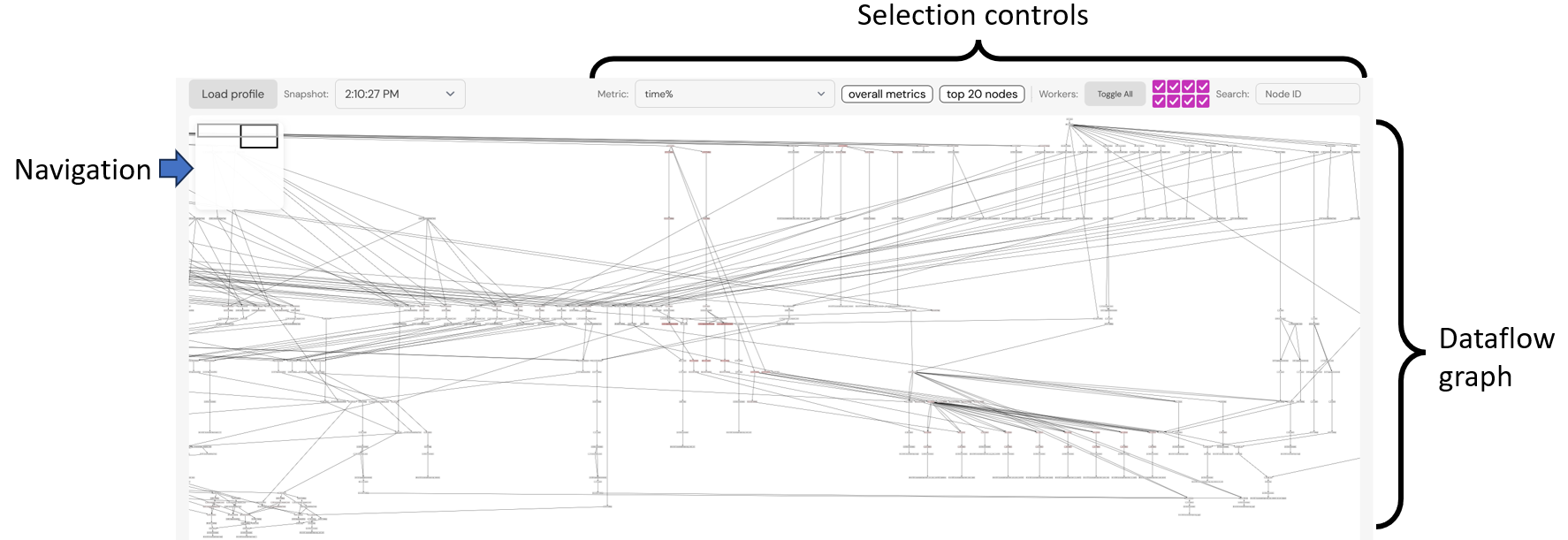
The profiler visualization interface is shown in the following image:
Navigation the dataflow graph
The visualization is designed for navigating very large dataflow graphs, possibly much larger that can fit comfortably on the screen. The navigation aid on the top-left displays two rectangles:
-
the light grey rectangle is the bounding box of the dataflow graph
-
the dark grey rectangle represents the browser window
Double-clicking on this navigation aid will recenter the dataflow graph, fitting it on the screen.
The mouse wheel can be used to zoom-in and zoom-out the dataflow graph.
The mouse gestures of grabbing and dragging can be used to pan horizontally and vertically.
Nodes can be moved as well using the mouse, i.e., to declutter edges, but information about moved nodes is lost when nodes are expanded or contracted, as described below.
Hierarchical dataflow graphs
Some nodes in a dataflow graph are in turn composed of other nodes and edges. Such nodes are shown with rounded corners. Double-clicking on such a node will expand it into the component nodes. Double-clicking on an expanded node will contract it.
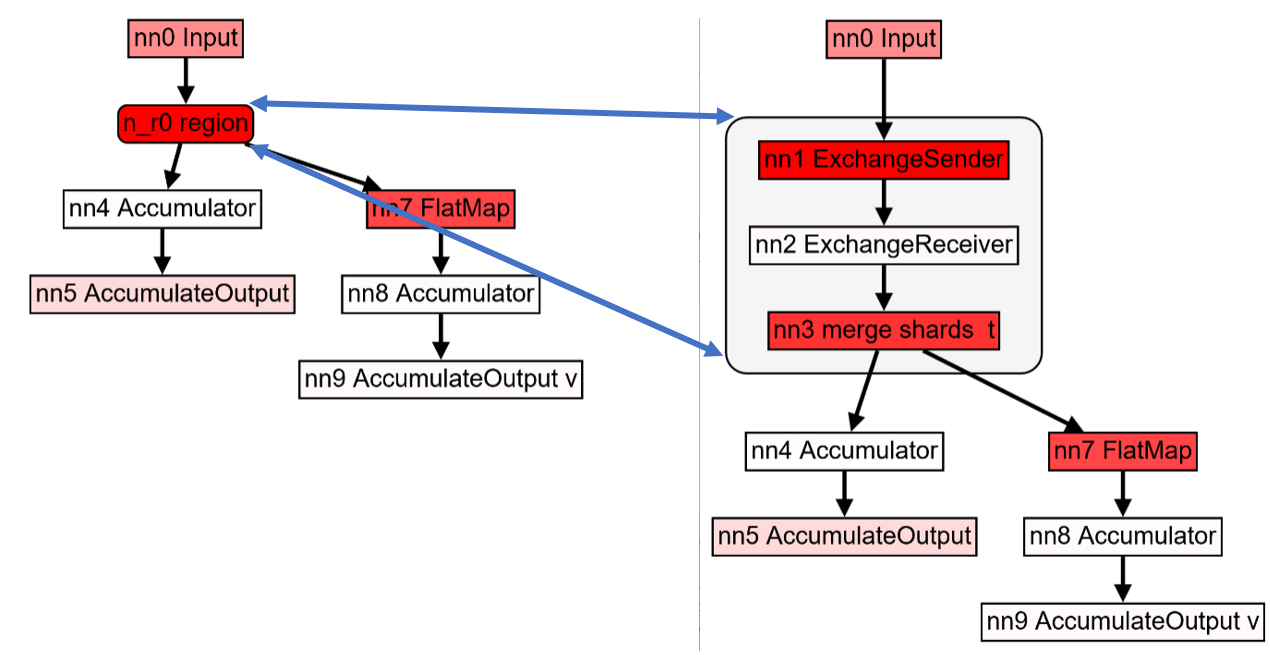
Unfortunately, expanding a node that has many components may change the layout of the overall layout of the graph on the screen significantly.
The metrics displayed for a composite node are derived from the values of the metrics of the component nodes. Some metrics are the sum of the metrics for the component nodes (e.g., time, storage), while other metrics are the maximum value across all components (e.g., "average", "percentage", "min", or "max" values).
Displaying node metrics
The user can mouse-over a node to display various measurements collected for the node. The measurements are displayed in a table.
Clicking on a node will make the table of measurements "sticky": the table will remain visible until either the user presses the ESCAPE key, or the user clicks on another node.
Understanding graph reachability
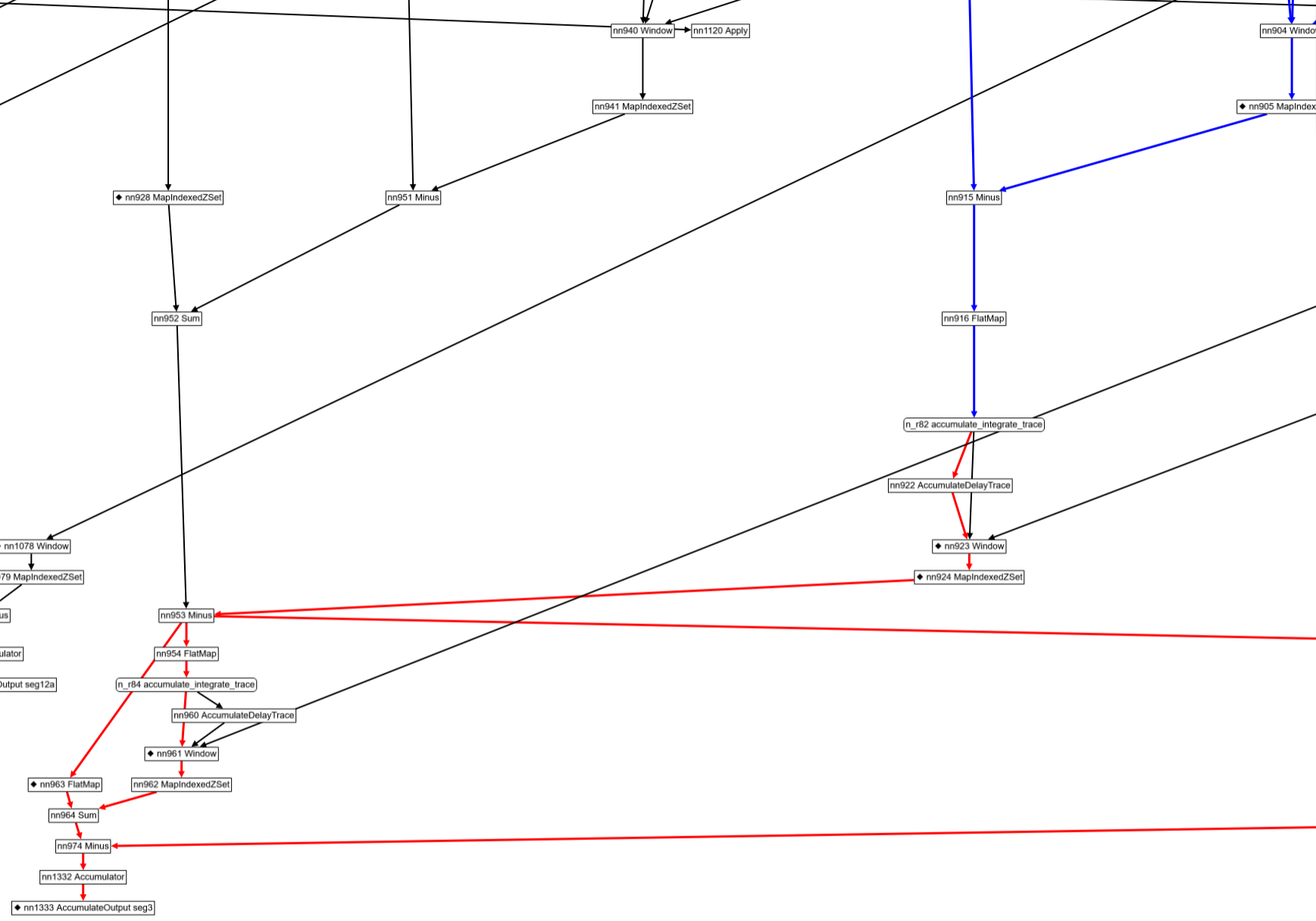
Mousing over a node, or clicking on a node will also compute all nodes upstream and downstream of the selected node. The downstream edges are displayed in red, and the upstream edges are displayed in blue. Note that graphs may contain "back" edges; the reachability information displayed currently stops at back-edges.
The table displaying node metrics
The metrics collected for a node are displayed as a table:
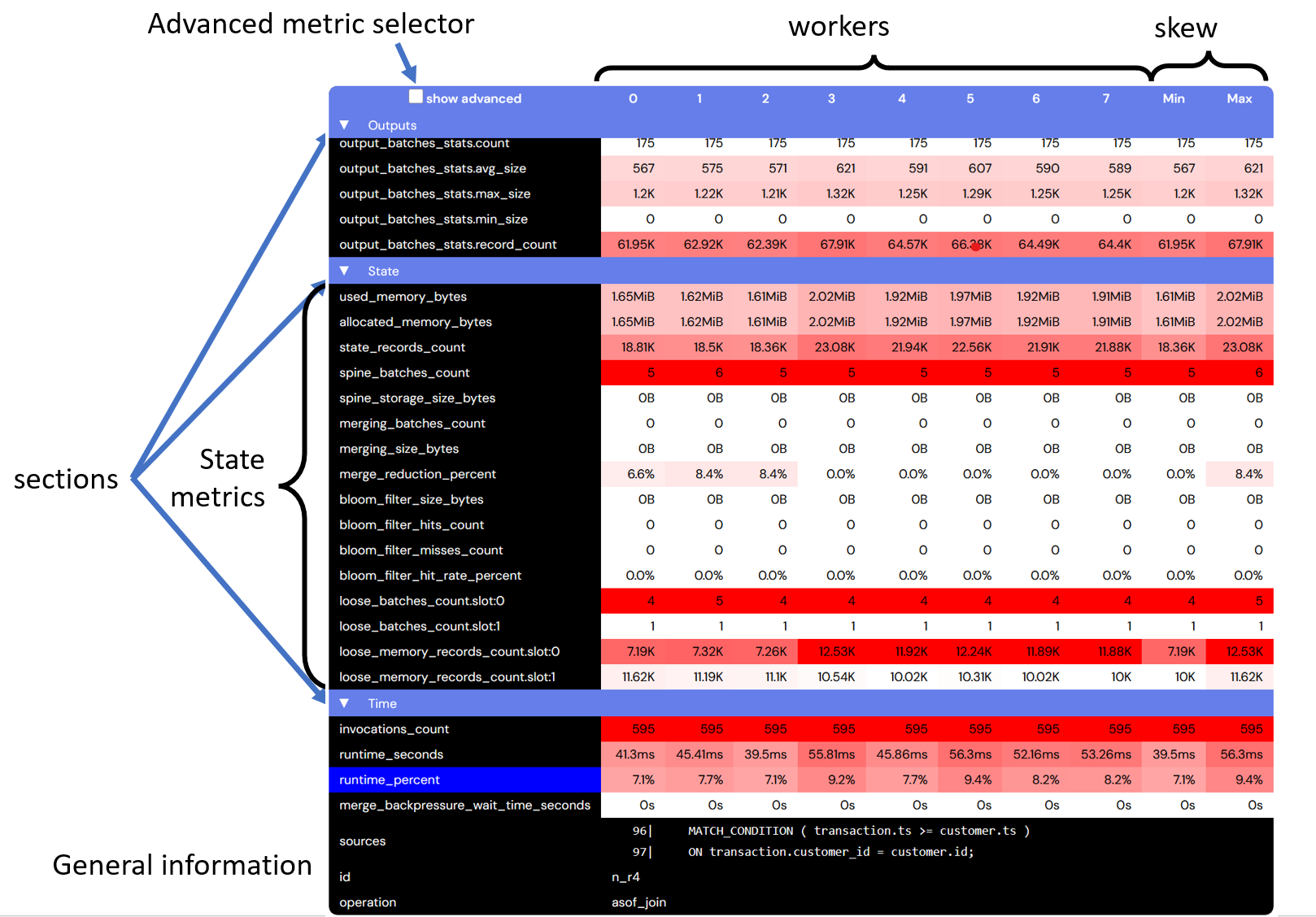
The table has one row for each measurement type. Related measurements are grouped together in sections which can be collapsed by clicking on the section header. The previous figure highlights the "State" section, containing metrics related to the internal state storage.
Some metrics are considered "advanced", and are only displayed when the "advanced metrics" checkbox is selected.
By default the table has one column for each worker thread that executes the operator (this can be controlled as described below). Differences between workers indicate data skew. The last two columns display the maximum and minimum values of the measurements across all workers for a node. A big difference between these two columns is also indicative of skew.
The table also displays general node information, such as the node operation type and node name, which can aid in navigation and debugging.
The table cells are colored according to the magnitude of the measurements. A deep red measurement has a high magnitude, while a white measurement has a low magnitude. What is "high" or "low" is determined by comparing the measurements across all operators and workers in the entire dataflow graph. For example, if the node taking most of the time in the graph requires 10% of the computation time, then a deep red value means "10%" (and not 100%).
The table display is essentially a heatmap of the resource consumption.
The units of the measurement used in the table are the "natural" ones: bytes for memory, seconds for time, values between 0 and 100 for percentages.
Note that the set of metrics displayed varies between different kinds of nodes. For example, a node which does not store data on disk will not have storage-related metrics.
The measurements for a composite node (that expands into multiple sub-nodes) are the sum of the measurements for all the individual component nodes.
Global metrics
The toplevel menu contains a button labeled "Overall metrics". Clicking on this button will display aggregate metrics collected for the entire pipeline. The information is shown using the same tabular display as used for individual nodes. Note that this information is not simply the "sum" of the information for all operators; this information is especially attributed to the entire pipeline by the profile collection code.

Selecting the node highlight metric
The "metric" drop-down box allows selecting a metric that the user wants to focus on. All graph nodes are colored according to their maximum value (across all workers) for this metric. A red node has a high value, while a white node has a low value.
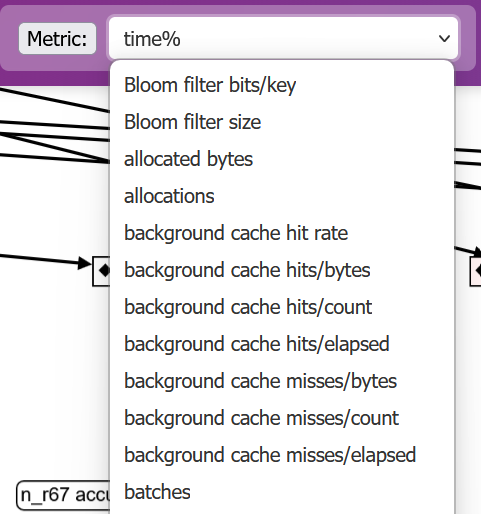
Finding nodes with high value of a metric
Clicking on the button labeled "top 20 nodes" will display a table with nodes that have a high value with respect to this metric:
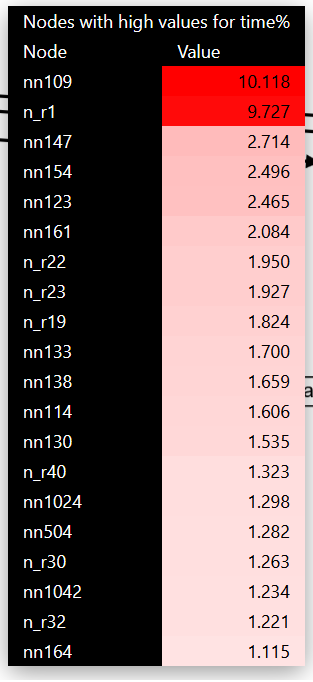
The rows in this table can be clicked; clicking on a node will center the display around that node.
Worker information selection
The toplevel menu contains a row of checkboxes: one for each worker. By deselecting some checkboxes the user can choose which workers to focus on. The "toggle all" button will complement the current selection.

Searching a node by name
The search box allows searching a node by name. The display will be centered around the node. (In the future we may allow searching by attributes as well.)

Cross-referencing with SQL
Some, but not all, nodes of the dataflow graph can be directly linked with source SQL expressions. A node that has source position information is displayed using a little diamond sign:

The source position information for these nodes is shown in the table of metrics, in a row labeled "sources":

The source code includes line numbers.
Note that there is generally a many-to-many relationship between nodes and source statements: multiple source statements may be assigned to a dataflow graph node, or multiple dataflow graph nodes may be used to implement a single source SQL statement. Some dataflow graphs do not directly correspond to any SQL statement.
Profiling pipelines using samply
Currently, Feldera uses a fork at feldera/samply as the upstream version doesn't work in EKS environments. To inspect the profiles generated by pipelines, you must install v0.13.2 or later of the fork, as some previously unstable features have changed between upstream release v0.13.1 and our fork.
Local environments
Before profiling in local environments, ensure the following requirements are met:
-
Install samply: Download and install samply version
0.13.2or later from the latest release. -
Configure kernel settings: Verify that
/proc/sys/kernel/perf_event_paranoidis set to 1 or lower. If the value is higher than 1, you can temporarily allow profiling with:echo -1 | sudo tee /proc/sys/kernel/perf_event_paranoid
Enterprise environments
For pipelines running in enterprise Kubernetes environments, profiling must be explicitly enabled during installation.
To enable profiling, install Feldera with the Helm flag pipeline.allowProfiling set to true.
This flag adds the PERFMON capability to the pipeline pod to enable profiling.
Example usage
Trigger profiling
# Start a 60 second profiling session
curl -X POST "http://localhost:8080/v0/pipelines/my-pipeline/samply_profile?duration_secs=60"
Retrieve the profile
Wait for duration_secs for the profiling to complete. Then make a GET request to fetch the latest profile.
# Retrieve the profile (after the session completes)
curl "http://localhost:8080/v0/pipelines/my-pipeline/samply_profile" -o prof.json.gz
Failures
400 Bad Request: If no profiles have been triggered or completed yet500 Internal Server Error: If there was an error during profiling
Inspect the profile
Use the Feldera fork of samply as described above to load the profile:
samply load prof.json.gz